
In today’s fast-paced world, our smartphones hold a lot of personal information. An incoming call can reveal sensitive details like the caller’s name, number, or even a preview message. If your phone is with family, friends, or colleagues, someone might accidentally or intentionally see private information. This is where an incoming call lock becomes useful. It adds an extra layer of security so only you can view and answer calls.
This guide explains what incoming call lock means, how it works, its benefits and limitations, and practical ways to enhance your call privacy on Android devices in 2026. Whether you are concerned about privacy at home, work, or in public, these tips will help you stay in control.
What is Incoming Call Lock?
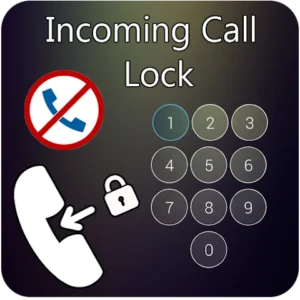
An incoming call lock is a security feature that requires authentication — such as a PIN, pattern, password, or biometric method — before displaying full details of an incoming call or allowing it to be answered. Instead of the usual full-screen caller ID popping up immediately, the phone shows a locked screen that needs your input first.
This feature helps protect your privacy in shared environments. It prevents others from seeing who is calling or reading notifications that might contain personal context. Modern Android versions and some manufacturer customizations offer variations of this, while third-party solutions from the Google Play Store provide more customization.
The core idea is simple: keep your incoming calls private until you authenticate. This aligns well with broader Android privacy improvements in 2026, including better spam protection and AI-powered call screening.
Key Features and Benefits of Incoming Call Lock
A good incoming call lock solution offers several practical advantages:
- Privacy Protection: Caller name, number, and any associated notes stay hidden until you unlock the screen. This is especially helpful in offices or family settings.
- Multiple Lock Types: Options typically include pattern, PIN, password, fingerprint, or face recognition, giving flexibility based on your device’s capabilities.
- Selective Application: You can apply the lock only to specific contacts while allowing important calls (like from family) to show normally.
- Custom Backgrounds: Many tools let you personalize the lock screen with themes, making it less obvious or more visually appealing.
- Quick Access for Trusted Calls: Set exceptions so emergency or favorite contacts bypass the lock for convenience.
- Integration with Android Security: Works alongside built-in features like Do Not Disturb, spam filtering, and lock screen notifications controls.
These features provide peace of mind without completely blocking communication. In 2026, with increasing focus on digital privacy, such tools help users maintain boundaries in an always-connected world.
How Incoming Call Lock Works
Understanding the mechanism helps you choose and set it up effectively.
When a call comes in, the system intercepts the standard call screen. Instead of showing full details, it presents a secure lock interface. You must enter the correct credentials or use biometrics to proceed. Once authenticated, the normal call screen appears, and you can answer or decline as usual.
Built-in Android options rely on lock screen settings and notification controls. For example, you can hide sensitive content on the lock screen through Settings > Security or Notifications. Manufacturer-specific features, like those on Samsung or Realme devices, sometimes include dedicated call lock toggles.
Third-party apps from the Play Store extend this functionality with more granular controls, such as per-contact rules or additional lock types. They run in the background and trigger on incoming calls without interfering with normal phone usage.
The process usually takes just a few seconds, balancing security with usability. Always test it with a few calls to ensure it doesn’t miss important ones.
Advantages and Limitations
Like any feature, incoming call lock has clear pros and cons.
Advantages:
- Enhances personal privacy significantly.
- Easy to set up for most users.
- Reduces the risk of accidental call answering by others.
- Complements other Android security tools like app locks and biometric authentication.
- Helps in situations where you lend your phone briefly.
Limitations:
- May add a small delay when receiving urgent calls.
- Some older or low-end devices might have limited support for advanced biometrics.
- Over-reliance on third-party tools could introduce minor battery drain if not optimized.
- Not a replacement for overall device security — you still need a strong phone lock screen.
- Certain accessibility features might need adjustment after enabling call locks.
Being aware of these helps you decide if and how to implement it based on your daily routine.
Best Practices and Tips for Using Incoming Call Lock
To get the most out of this feature, follow these practical recommendations:
First, always keep your main phone lock screen strong — combine it with the call-specific lock for layered protection.
Choose lock methods wisely. Fingerprint or face unlock works fastest for daily use, while PIN or pattern offers good security with less hardware dependency.
Set exceptions thoughtfully. Add key contacts like spouse, parents, or work numbers to bypass the lock during important hours.
Regularly review and update your settings. As your contact list changes, adjust rules to avoid missing calls.
Combine with Android’s built-in tools. Use Google Phone app’s spam protection and caller ID features alongside call lock for comprehensive coverage.
Test in real scenarios. Make test calls from different numbers to ensure the setup works smoothly.
Keep your Android version updated. Newer releases in 2026 bring improved privacy controls and better integration for these features.
For battery optimization, choose lightweight solutions and monitor usage in Settings > Battery.
Common Mistakes to Avoid
Many users make these errors when setting up call privacy:
- Applying the lock to all contacts without exceptions, leading to missed important calls.
- Using weak or easily guessable PINs/patterns.
- Ignoring battery and performance impact of poorly optimized apps.
- Forgetting to test the feature thoroughly before relying on it.
- Disabling built-in notification privacy settings, which defeats part of the purpose.
- Relying solely on one method instead of combining built-in and additional tools.
Avoiding these pitfalls ensures the feature actually helps rather than creates new problems.
Frequently Asked Questions
Does incoming call lock affect emergency calls?
No. Reputable solutions and Android itself always allow emergency numbers to bypass security locks for safety reasons.
Can I use incoming call lock without installing extra apps?
Yes. Android offers basic privacy through lock screen notification settings and Do Not Disturb exceptions. Manufacturer skins often provide additional native options.
Will it drain my battery faster?
Light usage has minimal impact. Choose well-rated apps and keep your system optimized. Monitor in battery settings if concerned.
Is this feature available on all Android phones?
Most devices running Android 10 and above support basic versions. Newer Android 16/17 versions in 2026 have enhanced privacy tools.
How do I remove or disable it later?
Access the app or settings where you enabled it and turn off the toggle. For built-in options, adjust notification or security settings directly.
Conclusion
Securing your incoming calls is a smart step toward better privacy on Android in 2026. By understanding the available options, setting them up thoughtfully, and combining them with built-in Android features, you can protect sensitive information without sacrificing convenience.
Take time to assess your needs, experiment with the methods discussed, and build habits that keep your communications private. Small adjustments in settings can make a big difference in your daily digital life.
Explore your phone’s security settings today or check the latest options in the Google Play Store to find what works best for you. Staying informed about Android privacy updates will help you maintain control as technology evolves.