
How can I lock my phone now
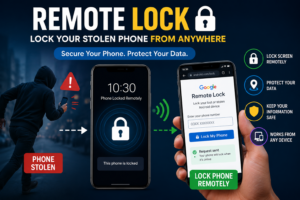
Fortunately, Android has a useful security feature called Remote Lock that can help you quickly lock your phone even when the device is no longer in your hands.
With Remote Lock, you can use another phone, computer, or browser to request a screen lock for your Android device. Google provides the feature through android.com/lock, where you can enter your verified phone number and request that the device be locked.
This can be especially useful when your phone has been stolen and you want to protect your information as quickly as possible.
In this guide, we will explain what Remote Lock is, how it works, how to lock a stolen Android phone remotely, what you need to set up before losing your phone, and what you should do after your phone is stolen.
What Is Remote Lock
Remote Lock is an Android security feature designed to let you lock your phone remotely if it is lost or stolen.
Instead of needing physical access to your phone, you can open a browser on another device and visit:
You can then enter the phone number associated with your device and follow the verification steps to request a remote screen lock.
The idea is simple.
Your phone is in someone else’s hands, but you still have a way to tell the device:
Lock the screen.
Once the remote lock request is successfully processed, the phone’s screen becomes locked. If the phone was offline when you sent the request, Google says the device can lock automatically once it comes back online.
Why Is Remote Lock Useful When Your Phone Is Stolen
A stolen smartphone can contain a huge amount of personal information.
Think about everything you may have on your phone:
- Personal photos and videos
- WhatsApp conversations
- Facebook and Instagram accounts
- Gmail
- Saved passwords
- Banking applications
- Payment applications
- Contacts
- Personal documents
- Emails
- Social media accounts
If your phone was unlocked when it was taken, the situation can become even more concerning.
This is why acting quickly matters.
Remote Lock gives you a fast way to secure the screen without physically having the phone with you.
Google’s Android guidance recommends using theft-protection features to protect your personal information if your device is lost or stolen.
How Does Remote Lock Work
The process is fairly straightforward.
Before your phone is lost or stolen, Remote Lock needs to be set up on the device.
When you lose the phone, you can use another device to visit android.com/lock.
You enter your phone number and complete the required verification. Google then sends the lock request to your device.
If the device is connected to the internet, the screen can lock shortly after the request.
If the device is temporarily offline, the lock request can take effect once the phone connects to the internet again.
This makes Remote Lock particularly useful because you do not necessarily need to have your Google Account open on the computer just to initiate the Remote Lock request.
What Do You Need Before Using Remote Lock
Remote Lock is not something you should wait to set up after your phone has already been stolen.
The feature should be configured beforehand.
According to Google’s current Android guidance, Remote Lock requires several conditions, including:
- A screen lock on the Android device
- An active SIM card
- A verified phone number
- Find Hub turned on
- An internet connection for the device to receive the request
This is an important point.
If you are reading this article while your phone is still safely in your hands, take a few minutes to check your theft-protection settings.
Doing it now is much better than trying to figure everything out after your phone disappears.
How to Turn On Remote Lock on Android
The exact menu names can vary slightly depending on your Android phone and software version.
On supported devices, Google provides the following path:
Settings → Google → All services → Theft protection → Remote Lock
From there, turn on Remote Lock.
You may need to verify your phone number before the feature is fully activated. Google also provides an optional security-question feature for Remote Lock on supported devices.
If you do not see the Remote Lock option, your phone may have a different Android version, manufacturer-specific settings, or may not currently support the feature.
How to Remotely Lock a Stolen Android Phone
Now let’s get to the most important part.
Suppose your phone has already been stolen.
What should you do?
Step 1: Use Another Device
Take another smartphone, tablet, laptop, or computer.
You do not need to use the stolen phone.
Open a browser on the device you still have access to.
Step 2: Visit Android Remote Lock
Go to websit
This is Google’s Remote Lock page.
You can also use the direct link below:
Step 3: Enter Your Phone Number
Enter the phone number associated with the Android device you want to lock.
Make sure you enter the correct number.
Google’s Remote Lock system uses the verified phone number associated with the device.
Step 4: Complete the Security Verification
You may be asked to complete a CAPTCHA or another verification step.
If you previously configured a security question for Remote Lock, Google may also ask you to answer it.
This additional protection helps prevent unauthorized people from remotely locking your phone.
Step 5: Request the Lock
After completing the required verification, request the device to be locked.
If the phone is online, the screen should lock shortly afterward.
If the phone is offline, Google says the device can lock when it comes back online.
What Happens After You Use Remote Lock?
Once the Remote Lock request is successful, the phone’s screen is locked.
This is the main purpose of the feature: to prevent someone who has your phone from easily accessing its contents.
Importantly, Google says that after a Remote Lock, the device can only be unlocked locally using the existing screen lock.
That means Remote Lock is not simply changing your password or sending a notification. It is intended to secure the device’s screen.
What If the Stolen Phone Is Offline?
This is another important question.
What happens if the thief turns off mobile data or the phone is temporarily disconnected from the internet?
Google states that if the device is offline when you send a Remote Lock request, the screen will lock automatically once the phone becomes online again.
However, Remote Lock is not a magic solution that can instantly control a completely disconnected phone.
The device needs to meet the required conditions for the feature to work.
This is why setting up Android’s other theft-protection and Find Hub features in advance is also important.
Does Remote Lock Turn Off the SIM?
This is something users should understand clearly.
Remote Lock locks the phone’s screen. It does not mean that the SIM card itself has been physically deactivated.
If your phone has been stolen, you should contact your mobile network provider separately and ask them about blocking or suspending the SIM if necessary.
This can help prevent someone from using your mobile number for calls, messages, or other services.
Remote Lock and SIM blocking are therefore two different security actions.
Remote Lock vs Find Hub
Remote Lock and Find Hub are related to Android device security, but they serve different purposes.
Remote Lock is focused on quickly locking the screen using your verified phone number.
Find Hub provides broader device-management capabilities.
According to Google, Find Hub can help you:
- Locate your device
- Play a sound
- Secure the device
- Mark it as lost
- Erase device data remotely
So if your phone is stolen, Remote Lock can be an immediate way to secure the screen, while Find Hub can provide additional options for locating, securing, or erasing the device.
What Should You Do Immediately After Your Phone Is Stolen?
Remote Lock should be only one part of your response.
If your phone has been stolen, consider taking these steps as quickly as possible.
1. Lock the phone
Use Remote Lock to secure the screen.
2. Try to locate the device
Use Find Hub to check whether the phone can be located.
3. Contact your mobile operator
Ask your carrier about suspending or blocking the stolen SIM.
4. Secure important accounts
If necessary, change passwords for important accounts, particularly accounts that may have been accessible through the stolen device.
5. Check banking and payment apps
Monitor your financial accounts for suspicious activity.
6. Report the theft
Depending on your circumstances and local requirements, consider reporting the stolen device to the appropriate authorities.
7. Keep your IMEI information
Google notes that your phone has a unique IMEI number, which can be useful when dealing with your mobile network operator or reporting a stolen phone.
Why You Should Set Up Screen Lock Beforehand
Remote security features are much more useful when your phone already has proper protection.
Google recommends using a strong screen lock, such as a PIN, pattern, or password. Google specifically recommends a PIN of six digits or more for stronger protection.
You should also consider enabling biometric authentication such as fingerprint or face unlock if your device supports it.
The goal is simple:
Make it difficult for someone else to access your phone even if they physically have it.
Android Theft Protection Has More Than Remote Lock
Remote Lock is not the only security feature available on Android.
Depending on your device and Android version, you may also have access to features such as:
- Theft Detection Lock
- Offline Device Lock
- Failed Authentication Lock
- Identity Check
- Find Hub
- Private Space
- Additional sensitive-setting protections
Availability can vary by device and Android version, so you should check your phone’s own settings.
For example, Google’s current Android guidance notes that some theft-protection features are available only on certain devices or Android versions.
How PilePCR.com Helps Users With Technology
At PilePCR.com, our goal is to make useful technology information easier to understand.
Technology can sometimes feel complicated, especially when a phone is lost or stolen and you need a solution immediately.
Our website focuses on practical technical information, online tools, how-to guides, security tips, and educational content designed to help everyday users understand technology without unnecessary complexity.
Whether you want to learn about phone security, online services, useful Google features, or other technology-related topics, PilePCR.com aims to provide simple guides that help you take the right steps.
Quick Guide: Remote Lock Your Phone
Here is the entire process in a simple format:
Before losing your phone:
- Make sure your Android phone has a screen lock.
- Keep your SIM active.
- Verify your phone number.
- Turn on Find Hub.
- Enable Remote Lock under Theft protection.
If your phone is stolen:
- Use another phone or computer.
- Open android.com/lock.
- Enter your phone number.
- Complete the required verification.
- Request the phone to be locked.
- Contact your mobile operator if you need to block the SIM.
- Use Find Hub for additional security or device-management options.
Frequently Asked Questions About Remote Lock
What is Remote Lock?
Remote Lock is an Android security feature that allows you to remotely lock the screen of a supported Android phone if it is lost or stolen.
How do I use Remote Lock?
Visit android.com/lock from another device, enter the verified phone number associated with your phone, complete the required verification, and request the device lock.
Can I lock my stolen phone without having it?
Yes. That is the purpose of Remote Lock. You can request the screen lock from another device through the Remote Lock website.
Does Remote Lock erase my phone?
No. Remote Lock is primarily for locking the screen. If you need to erase the device, Google provides separate options through Find Hub.
Does Remote Lock block my SIM?
No. Remote Lock locks the device’s screen. If you want to suspend or block your SIM, you should contact your mobile network operator.
What if my phone is offline?
If the device is offline when you send the Remote Lock request, Google says it can lock automatically when it comes back online.
Can I unlock the phone after using Remote Lock?
According to Google, after the device is remotely locked, it can be unlocked locally using the existing screen lock.
Is Remote Lock available on every Android phone?
Availability can depend on the Android version, device, and required security settings. Check your phone’s Theft protection settings to see whether Remote Lock is available.
Final Thoughts
Losing a smartphone is stressful, but the situation becomes much easier to manage when you already have the right security features enabled.
Remote Lock gives Android users a simple way to protect their phone’s screen when the device is lost or stolen. Instead of waiting until you physically recover the phone, you can use another device to request a remote lock through Google’s official service.
If your phone is stolen, remember that Remote Lock is only one step. You should also consider locating the phone through Find Hub, contacting your mobile operator to deal with the SIM, protecting important accounts, and reporting the theft when appropriate.
Most importantly, don’t wait until your phone is stolen to think about security.
Take a few minutes today to check your Android phone’s Theft protection, Remote Lock, Find Hub, screen lock, and backup settings.
👉 CLICK HERE – Google Remote Lock
For more practical technology guides, security tips, and educational how-to articles, visit PilePCR.com.